FCC_EA 1.1: size trades by risk, set stops where your strategy would, and meet Trading Panel 2.0
The headline of this update: FCC_EA can now place its stop loss and take profit from the chart structure (a swing, the range, an SMMA band or VWAP) instead of a fixed number of points. You can see exactly how that works on your chart, because FCC_EA now draws every signal with its trade plan, including the signals your filters blocked. It can also size each trade from the money you're willing to risk. And the Trading Panel 2.0 shows the exact lot, loss and profit before you click.
If you trade a prop account, two new tools are for you: a News Filter that pauses new FCC_EA trades around the big US releases (NFP, CPI, FOMC and the like), and a daily profit / loss lockout that works like the daily limit on a prop account: it closes the trades and blocks new ones until the daily reset. There's more for strategy builders too: IFVG on up to three timeframes, a new SMMA retest entry, Liquidity Sweep levels per side, and your own alert label now on the Equity Guard, lockout and news alerts too.
It's for you if you trade by hand with the panel (Free, Pro or the panel inside FCC_EA), and if you run FCC_EA on autopilot and want to see why it did, or didn't, take a trade.
What's in it, feature by feature, and how to update at the end. Versions: FCC_EA 1.1.0, FCC Trading Panel Free and Pro 1.1.0.
Stop loss and take profit from the chart structure
FCC_EA only.
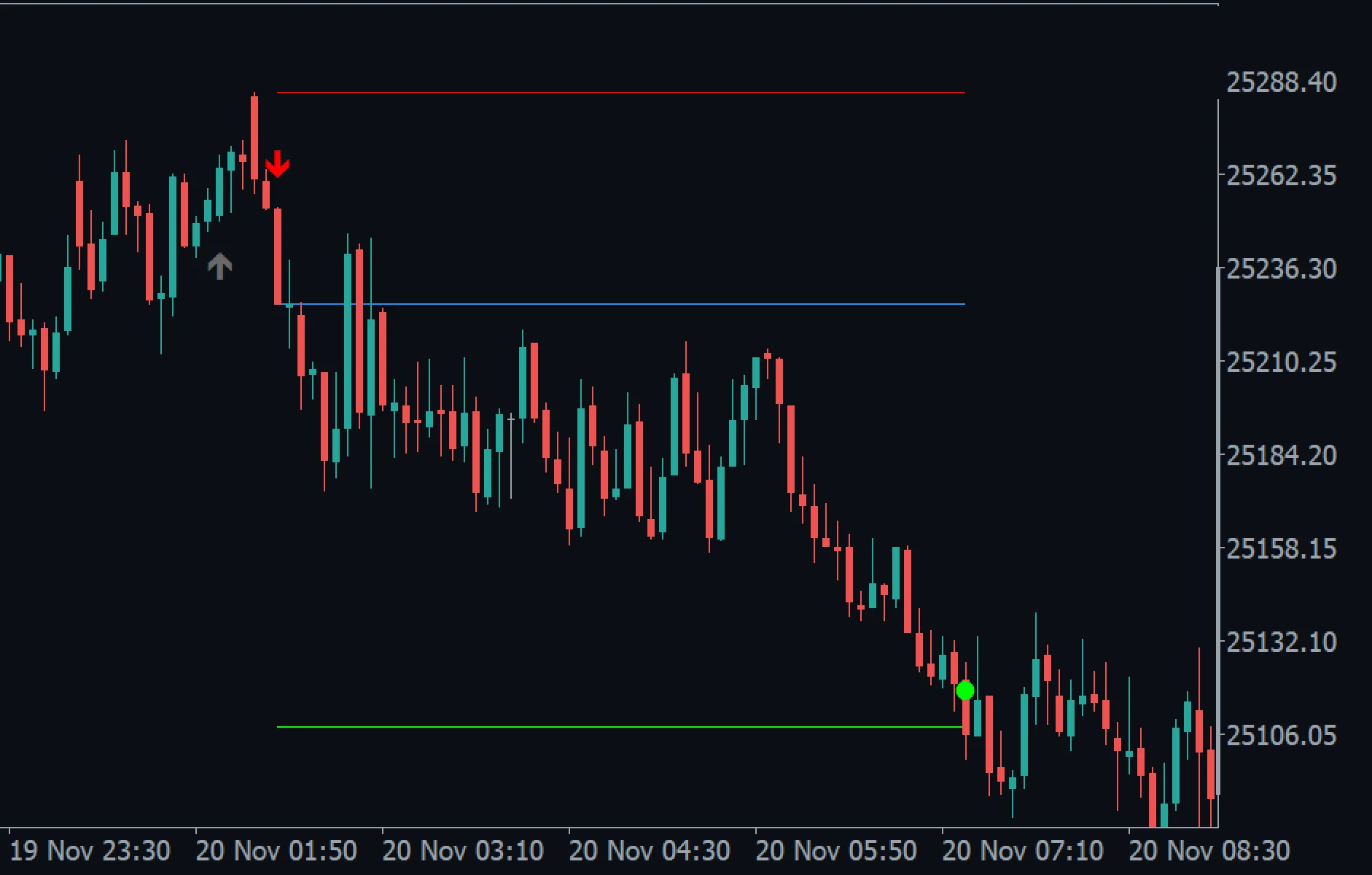
This is the biggest change in 1.1. A stop set as a fixed number of points doesn't know anything about the chart: on a quiet day it's too wide, on a volatile one it sits right where price wanders anyway. Now FCC_EA can place the stop where your strategy would.
Stop Loss Mode offers Fixed, Range, Swing, IFVG Swing, SMMA Fast Band, SMMA Slow Band and VWAP. So the stop goes behind the last swing, beyond the range edge, past the SMMA band or on the other side of VWAP, and it moves with the market from trade to trade. Add an offset to keep it clear of the level, a minimum distance so it's never too tight, and a maximum: if the stop would be wider than your maximum, the trade is skipped instead of taken with a stop you didn't want.
Take Profit Mode can stay Fixed, follow your stop as an R:R multiple (2.0 = twice the stop distance), use the Range Width (Range Breakout only), or be off. With R:R, the target always keeps the same relation to the risk, however wide the stop turns out to be. Combine it with Risk $ / % (below) and every trade has the same planned loss and target in money, whatever the stop size.
Read more: Stop loss and take profit modes.
See it on the chart: signal arrows and trade plan lines
FCC_EA only.
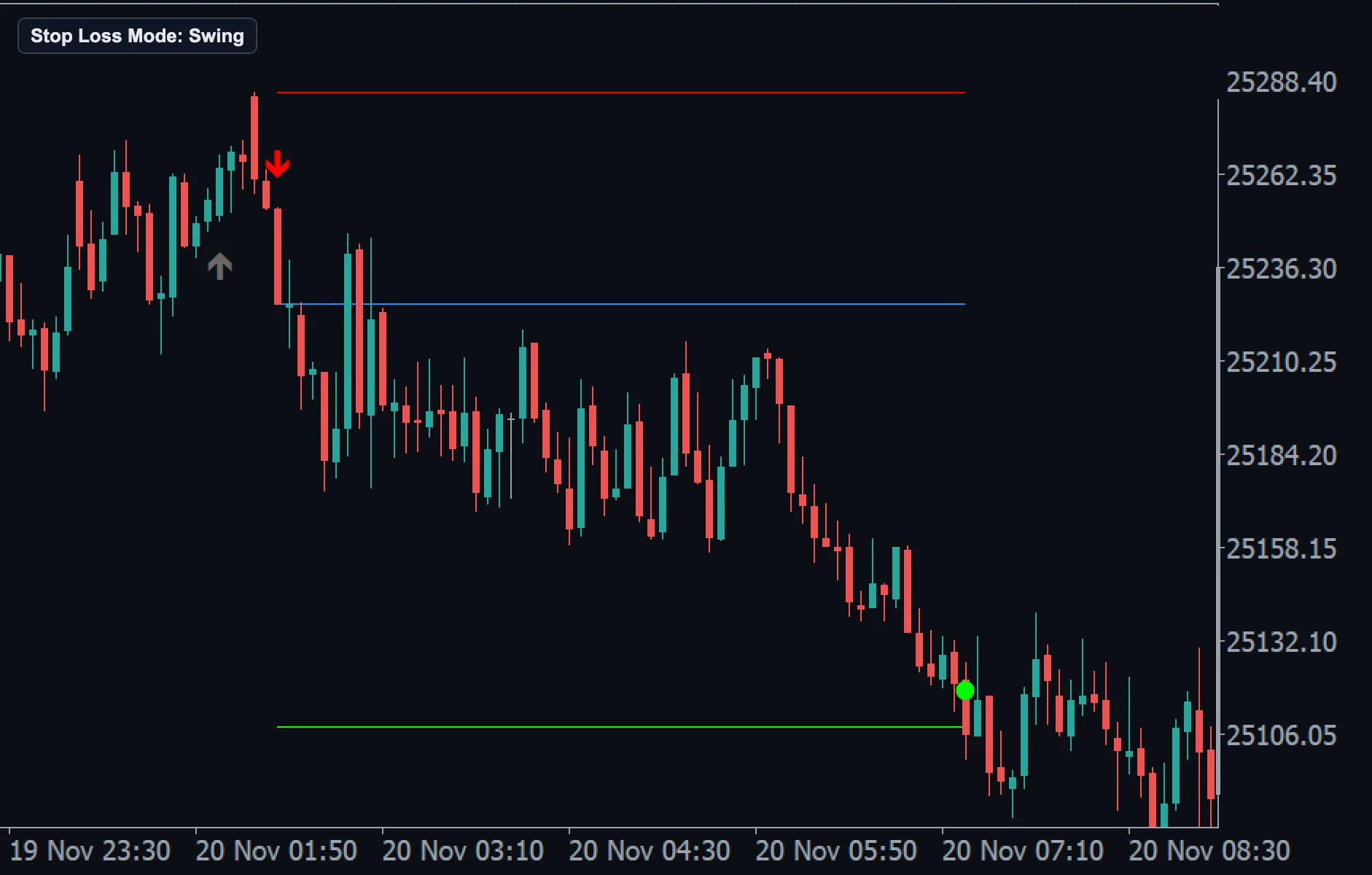
Picking a stop mode is easier when you can see it. FCC_EA can now draw its signals and their trade plans right on the chart, so you check your settings visually instead of digging through a backtest.
How your stop and target behave. Turn on Display Signal SL/TP Lines? and each recent signal gets its plan, drawn with your current settings: entry, stop and target, with a tooltip showing the points, lot, loss and profit in money and the R:R. The lines follow the Stop Loss Mode and Take Profit Mode you've picked, so you see where each stop would have sat on your own chart. Change a setting (F7 → OK) and FCC_EA clears its arrows and plan lines, then rebuilds them from chart history with the new settings. Switch Stop Loss Mode from Swing to VWAP or SMMA Slow Band and the stop lines on past signals move with it. Compare a few signals and you'll quickly see which stop type suits your market and timeframe, and whether the offset, minimum or maximum needs a nudge. Range and IFVG stops are drawn on live signals; on history they're approximate, and the tooltip marks them. A few live-only conditions, such as spread or Max Price Distance, can't be replayed on history.
What your filters do. Turn on Display Signal Arrows? and FCC_EA marks every signal of your method: live for all seven methods, and replayed over recent history (for Liquidity Sweep, today's session). Green and red arrows passed all your filters. Grey arrows are signals a filter blocked, or that weren't traded (for example in Manual mode), and hovering over one shows which filter stopped it (Trend, Chop, Slope, VWAP, Pivot or Fast SMMA band), for example blocked: Trend filter. Signals that passed your filters but weren't opened, say because the slot was busy, show not opened with the reason. A signal whose stop or target would sit inside the spread is skipped too and shows as a grey arrow with SL inside the spread: FCC_EA never widens the stop just to make the trade fit. Too many grey arrows, and a filter may be too strict; none at all, and it may not be doing much.
History arrows are a replay on past bars, so a few cases are approximate and the tooltip says so. They show what your rules saw, not a trading result: use them to understand and tune your settings, then confirm in the Strategy Tester or on a demo account.
Read more: Signal arrows and plan lines.
Risk sizing: a fixed lot, or a lot from your risk
FCC_EA only. In the panel, the $ / % size per click is in all three products.
FCC_EA has a new Lot Size Mode: keep Fixed Lot, or let it size each trade from your risk, as Risk $ (the amount you'd lose if the stop is hit) or Risk % (that share of your balance). The lot is worked out from the trade's own stop, so a wide stop gets a smaller lot and a tight one a bigger lot, for the same money at risk. It's always rounded down, and if even the smallest lot would risk more than you set, the trade is skipped rather than opened too big.
That sizes the first position. Grid, pyramiding and add-ons keep their own rules, and Max Basket Loss at SL puts a cap on the whole basket: a new position that would take the basket's loss at the stop past your limit is made smaller or skipped. In the panel, the $ / % size works per click, as described above (Max Basket Loss applies to FCC_EA's own trades, not to panel clicks).
Read more: Lot size from your risk and Max Basket Loss at SL. Setting reference: Lot Size Mode, Initial Position Risk at SL and Max Basket Loss at SL.
Equity Guard can now stop new trades
Stopping new trades at the loss limit: FCC_EA only. Panel Pro keeps the Equity Guard warning and gets the new daily profit / loss lockout (see "A daily limit like on a prop account" below).
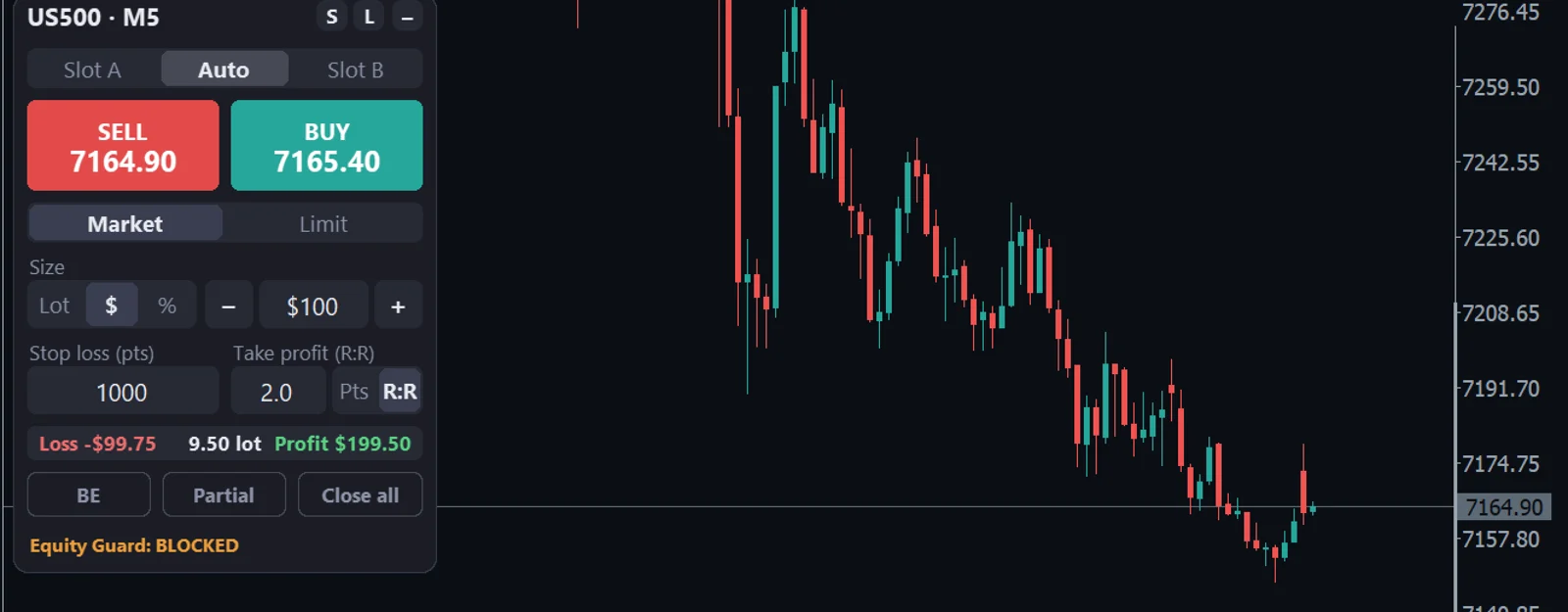
Equity Guard used to only warn you when equity dropped a set amount below its start-of-day level. In 1.1 it does two new things: it can stop new trades at that warning (below), and it has a full daily profit / loss lockout that closes and locks for the day (see "A daily limit like on a prop account"). In FCC_EA you can now turn on Stop New Trades at the Daily Equity Loss Warning?: once that warning level is reached, FCC_EA opens no new signal trades, add-ons, grid or pyramid positions until the daily reset, even if equity recovers meanwhile. The panel footer shows Equity Guard: BLOCKED.
It does not close anything: open trades keep being managed with their stops, targets, breakeven and trailing, and your own clicks in the Trading Panel still work. If you trade with a prop firm, check how their daily loss is measured against this setting.
Read more: Equity Guard: stop new trades.
Breakeven, partial close and trailing in R
FCC_EA only.
Breakeven, partial close and the trailing start can now be set as a multiple of the trade's own stop distance (R) instead of points. Breakeven at 1R means "move the stop to entry once the trade is as far in profit as the stop was away", whatever the stop size was. Leave the R setting at 0 and the points work as before. The trailing distance itself stays in points.
This is in FCC_EA for its own trades; the Management section of the panel in Full mode keeps its fields in points.
Read more: Breakeven and trailing in R and Partial close in R. All R settings: Breakeven settings.
Trading Panel 2.0
In Panel Free, Panel Pro and FCC_EA.
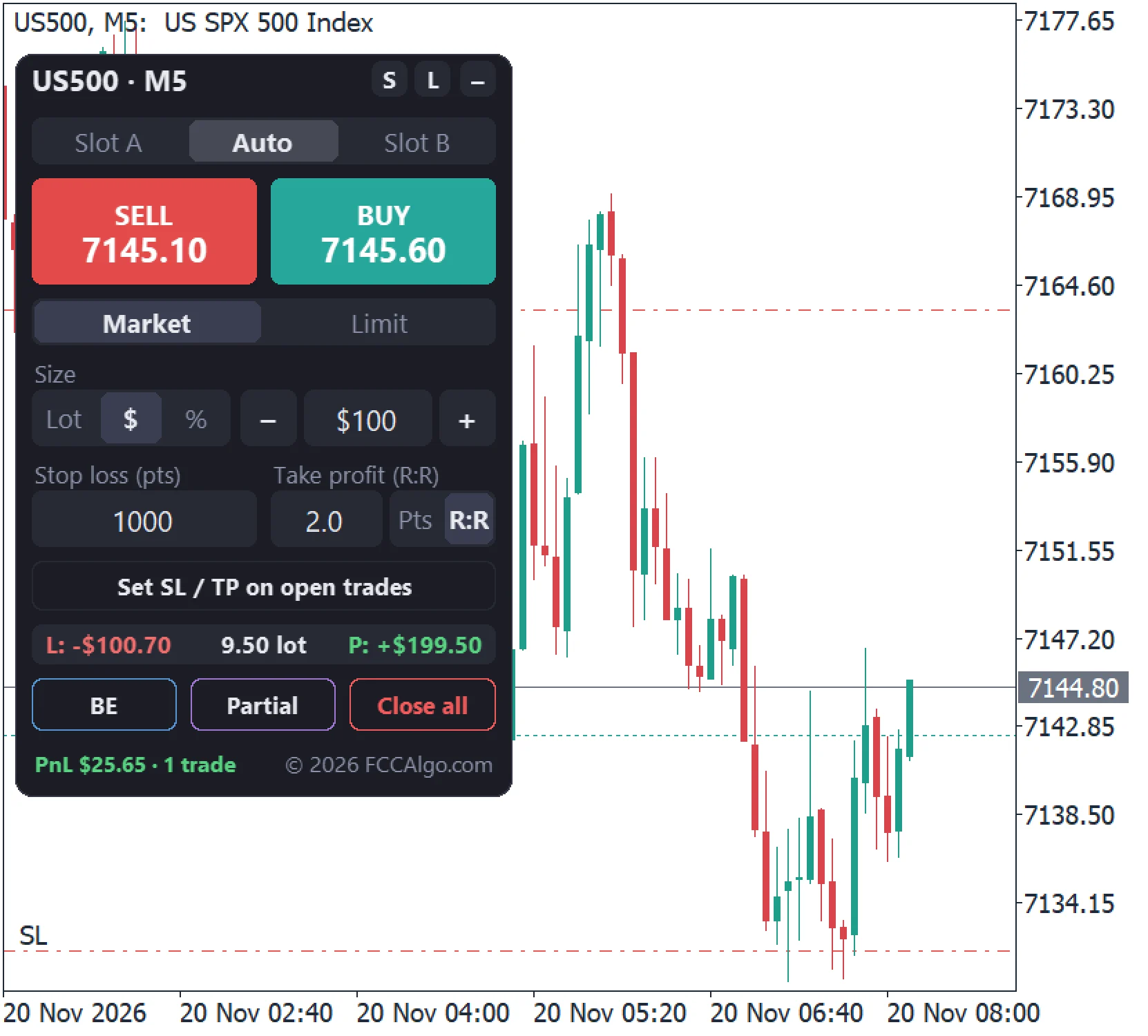
The panel has a cleaner, more modern layout, and it's the same in FCC_EA, Trading Panel Pro and Trading Panel Free. The SELL and BUY buttons show the live bid and ask. A Market / Limit switch replaces the old LIMIT row, and in Limit mode the button tells you what you'll get (BUY LIMIT or BUY STOP, depending on where your price is) before you send it.
Set the size as a Lot, an amount in $ or a % of your balance, and the take profit in points or as an R:R multiple of your stop. Pick Quick for a compact panel or Full for the Management section (breakeven, grid, trailing, partial close). In FCC_EA, Quick or Full follows Use Quick Trade Panel?: in Manual mode the panel is always there (on = Quick, with management from your settings; off = Full with the Management section), and in the automatic modes it's on = Quick panel, off = no panel. There's a Light theme for white charts and a Panel Scale setting if the panel looks too small or too big on your screen; if it's taller than the chart, it shrinks to fit so Close all stays in reach.
The PLAN tool works hand in hand with it. Click L (long) or S (short) in the panel header and the plan is drawn at the market price, on the current candle. The panel then opens exactly the lot the plan shows, and its row shows the plan's lot, loss and profit. Drag the plan's entry away from the price and the panel switches to Limit by itself; close the plan and your previous order type and Limit price come back.
Good news for Free users: the size in $ / %, the R:R take profit and the PLAN tool are in Free too, not locked behind Pro.
Read more: Trading Panel overview, Full mode and Management and Free vs Pro. PLAN tool: PLAN tool.
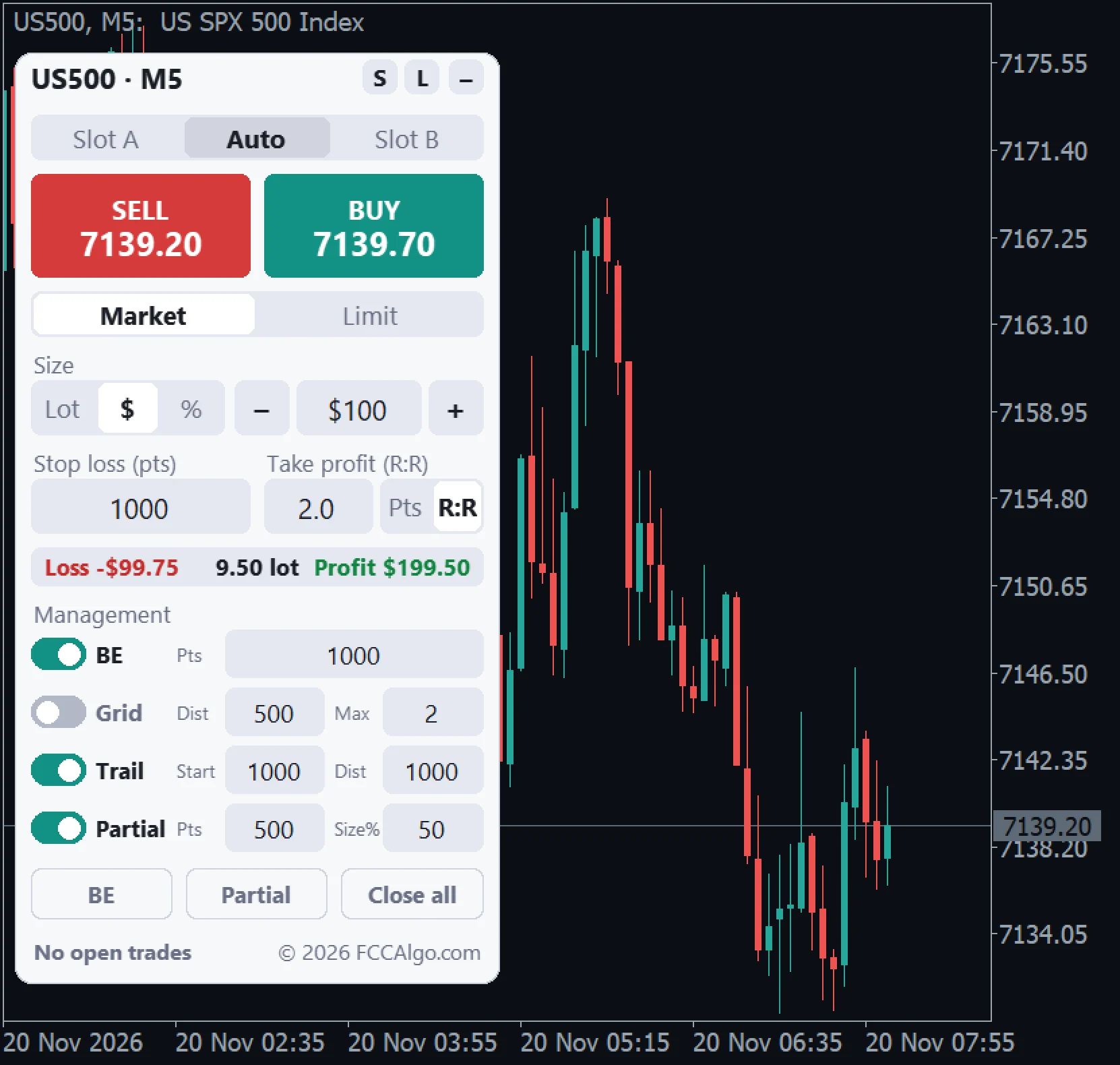
The exact lot on every click, and the money before you click
In Panel Free, Panel Pro and FCC_EA (the per-slot basket row is FCC_EA only).
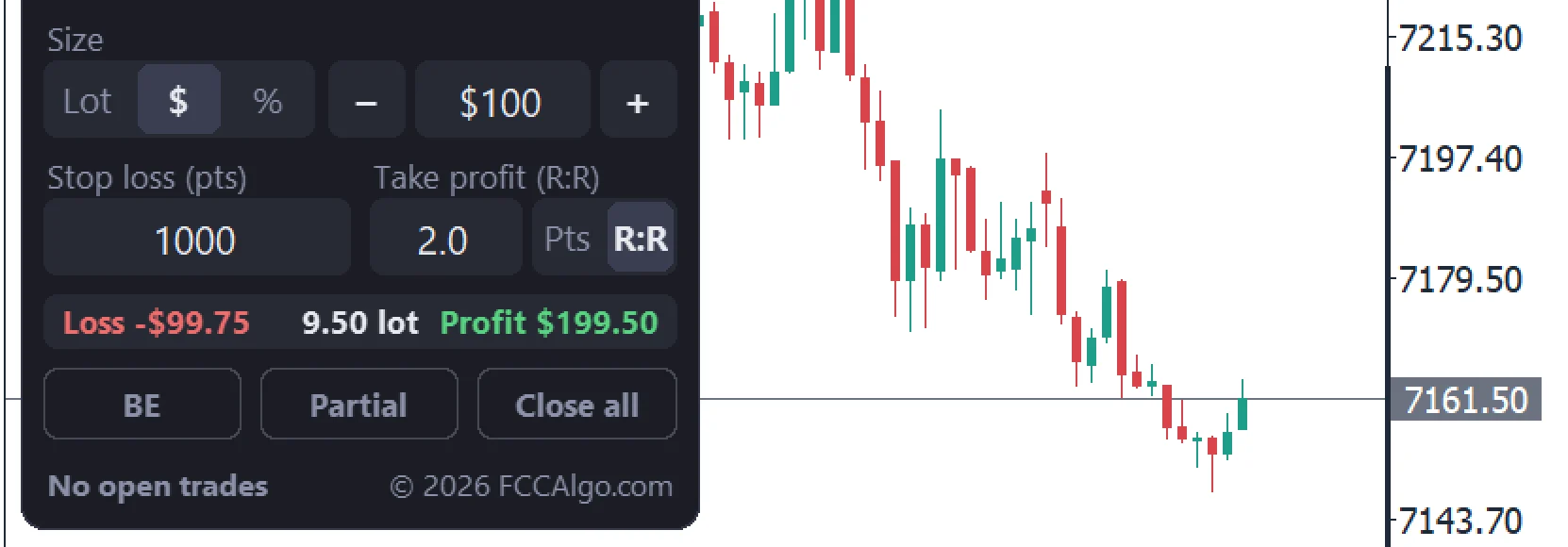
Under the stop loss and take profit there's now a Loss / lot / Profit row. With no trades open, it shows what the next click would do: the lot it opens, what you'd lose at the stop and what you'd make at the target. The click then opens exactly that lot, so there's no surprise between the preview and the order. The loss is measured to the stop the order really gets, spread included.
The stop also lands where the preview said. When you size by $ or % (the panel's Size, or Risk $ / % in FCC_EA), the broker stop keeps at least the broker's minimum distance plus the spread away from the price. An add-on whose stop would sit inside that buffer is refused (Add-on refused: SL too close). If slippage on the fill leaves the stop on the wrong side or too close, FCC_EA and the panel move it to your planned distance from the real fill price, and an R:R target moves with it. If the price is already past that stop, the trade is closed at market. A stop you moved yourself is left alone.
Once trades are open, the same row switches to your open basket: the money at the stops and targets of everything that's running, and the total lot. In FCC_EA, when both slots have trades, you get one figure per slot instead of a sum that would never happen. If a trade has no broker stop, the row uses the stop the EA itself acts on and marks it (v) (Pro and FCC_EA, when SL Timeout or Hedge Mode is on).
Three smaller things you'll notice: Close all is now red, so it's hard to mistake for BE or Partial, the BE button won't set a breakeven that's too close to the price to hold (it tells you in the panel instead), and a stop loss or take profit inside the spread is refused with a clear message, instead of a trade that stops out the moment it opens.
Read more: The Loss / lot / Profit row and BE and Close all.
Stay out of the news
FCC_EA: the filter, the news lines and Close Positions Before News. Panel Pro: the news lines, the warning and Close Positions Before News. Panel Free: the news lines and the warning.
A clean setup can still get caught by a number. With the News Filter, FCC_EA opens nothing in a window you set before and after the news you pick: no new signals, add-ons, grid or pyramid positions. Open trades keep being managed as usual. You choose the events by their name in the MT5 economic calendar, so the top US releases like Nonfarm Payrolls, CPI and the FOMC decision are a list you control, and other currencies work too.
Turn on Display News (Lines + Countdown)? and every listed release gets a dashed line on the chart (colour by impact, details in the tooltip) and a countdown on the panel. A signal that came inside the window shows as a grey arrow that says it was the news. If you'd rather be flat for the release, Close Positions Before News (FILTERS SETTINGS in FCC_EA, NEWS SETTINGS in Panel Pro) can close everything, only this chart's trades, or only its losing or only its profitable positions when the window starts. You then get one summary alert per release (what was closed, the net result, what was kept) instead of one alert per position. If a position can't be closed, a separate alert says the close before news FAILED and is retrying, so you know to check your trades.
In the panels the window and the list are News Warning and News to Watch (NEWS SETTINGS). Your clicks always go through; inside the window the panel footer warns you.
Read more: News Filter, Display News and Close Positions Before News.
A daily limit like on a prop account
FCC_EA and Panel Pro.
Prop accounts have a daily limit, and now FCC_EA and Panel Pro can have one too. Set a Daily Loss Lockout, a Daily Profit Lockout or both, in money (your account currency) or as a % of the day's starting equity. When today's result (open trades included) reaches the limit, the trades are closed at market and new ones are blocked until the daily reset: signals, add-ons, grid, hedge legs and the panel's BUY / SELL buttons alike. Close all, partial close and BE still work.
You pick what a lockout closes and blocks in Daily Lockout: Close & Block (whole account / this chart): every position on the account (Whole Account: every position closed, every FCC chart blocked, so one chart guards the whole account) or only this chart (This Chart Only: this symbol and magic number). With Whole Account, a lockout stops every FCC_EA and Trading Panel chart on the account, Panel Free charts included. A warning alert comes first when you get close to a limit, at a share of it that you set in Daily Lockout Warning (% of the limit, 0=off). Deposits and withdrawals during the day don't count as profit or loss. The close happens at the market price, so in a fast market the day can end a little past your limit.
You'll see it on the chart: the Equity DD: label at the top shows LOCKED in orange, the Trading Panel footer reads Daily lockout: LOCKED until …, and an alert tells you the limit was reached and when trading opens again (amounts in your account currency). With Whole Account, a Panel Free chart on the same account shows LOCKED (account) and waits for the reset too.
FCC_EA and Panel Pro on the same account share one daily lockout: one daily base, one lockout and one alert, not two. A Whole Account lockout ends at the same moment on every chart.
Older FCC charts and other programs. During a Whole Account lockout, a trade that another program (or an FCC chart still on 1.0) opens is closed once, with an alert. If the same magic number keeps opening trades, they're left open and you get one alert about it. A 1.0 FCC chart is named in that alert with "update it to 1.1 or remove it". So update every FCC chart on the account together.
This is a different tool from the Equity Guard setting above, which only stops new trades and never closes anything. If you trade with a prop firm, check how their daily limit is measured and set yours with some room inside it.
Read more: Daily Loss / Profit Lockout.
IFVG on up to three timeframes
FCC_EA only.
FVG / IFVG detection now runs on up to three timeframes at once, each checked on its own bar close, also when it differs from your Signal TF. Set IFVG Confirmation to At Least 2 TFs or All Enabled TFs and an IFVG entry waits until a same-direction IFVG on another timeframe backs it up, within a window you set. Once a trade is open, the matching IFVG on the other timeframe doesn't fire a second entry in the same place.
New for IFVG trades: Close on Opposite IFVG? If an IFVG in the opposite direction forms over your entry zone within the number of bars you set (or for as long as the trade is open), FCC_EA treats the setup as failed and closes that trade at market.
Read more: FVG / IFVG timeframes and confirmation and Close on Opposite IFVG.
SMMA: Band Cross + Retest
FCC_EA only.
A new SMMA Trigger Mode. The band cross only sets the direction; the entry comes when price comes back to the fast band. Retest Mode decides what counts as the retest: a touch, a close back outside the band after the touch, or an IFVG at the band. You can cap the trades per cross, and when the bands overlap the retests pause until there's a clear direction again.
Read more: SMMA Band Cross + Retest and SMMA settings.
Liquidity Sweep: pick the side of each level
FCC_EA only.
Each of the twelve Liquidity Sweep level sources, order blocks and rejection blocks included, is now Off, Low - long signals only, High - short signals only or Both - long and short signals instead of on or off. Low takes only the long signals from the lows, High only the short signals from the highs. So you can, say, trade the Asia low for longs and ignore the Asia high. A side you turned off stays on the chart in grey, so you still see the level, and it never fires.
Read more: Liquidity Sweep level sources and Order blocks.
Using Liquidity Sweep today? The level-source settings changed, so an older set file loads with every source Off, and FCC_EA tells you so when it starts. Switch on the levels you use again (Both - long and short signals = how they worked before) and save the set.
Your own label on every alert
FCC_EA and Panel Pro.
Running several terminals? Custom Text Added to Alerts puts your own label, the account or the VPS name for example, on its own line in every alert. In 1.1 that includes the Equity Guard warning and the new lockout and news alerts, so you always know which account is talking.
Don't want some of them? Two new switches in ALERTS, Alert on Daily Lockout? and Alert on News?, turn the lockout and news alerts off on their own.
Read more: Custom Text Added to Alerts.
Which product gets what
| Feature | Panel Free | Panel Pro | FCC_EA |
|---|---|---|---|
| New panel look, Quick / Full, Market / Limit, Light theme, Panel Scale | yes | yes | yes |
| Size by Lot / $ / %, TP in points or R:R, Loss / lot / Profit row | yes | yes | yes |
| Red Close all, BE refused when the price is too close | yes | yes | yes |
| PLAN: the panel opens the plan's lot; drag the entry → Limit | yes | yes | yes |
| Basket row per slot (A / B) | no (one slot) | no (one slot) | yes |
| Lot Size Mode, Max Basket Loss at SL | no | no | yes |
| SL / TP modes (Swing, Range, IFVG, SMMA, VWAP; R:R, Range Width) | no | no | yes |
| Signal arrows and SL / TP / entry lines | no | no | yes |
| Equity Guard: Stop New Trades at the Daily Equity Loss Warning? | no | no (Equity Guard warning; Pro has the daily lockout below) | yes |
| BE / partial / trailing start in R | no | no | yes |
| News lines + countdown, panel warning in the news window | yes | yes | yes |
| News Filter: no new trades around the news you pick | no (panel clicks always allowed) | no (panel clicks always allowed) | yes |
| Close Positions Before News | no | yes | yes |
| Daily profit / loss lockout (closes, then blocks until the reset) | no | yes | yes |
| IFVG on up to 3 timeframes, confirmation, Close on Opposite IFVG | no | no | yes |
| SMMA Band Cross + Retest | no | no | yes |
| Liquidity Sweep levels Off / Low / High / Both | no | no | yes |
| Custom text on every alert (now also Equity Guard, lockout, news) | no | yes | yes |
| Alert on Daily Lockout? / Alert on News? switches | no | yes | yes |
| One lockout shared by FCC_EA and Pro on the account | no (honours a Whole Account lockout) | yes | yes |
Also in 1.1: Hedge Mode never places its stop inside the spread and tells you when it widens a zone that's too tight (FCC_EA and Pro), hedge close alerts report the real closed result, and a few settings have clearer names (your set files still load). Some settings have new names or moved: see Renamed settings in 1.1.
Plus a round of fixes and optimisations under the hood.
Full list of changes: release notes for 1.1.0.
What works differently after the update
Most of 1.1 waits until you switch it on. These few things change on their own, so read them before you update:
- Panel TP field at 0 now means no take profit (Panel Free, Pro and FCC_EA). In 1.0 a 0 there used the Take Profit (points) setting from the inputs. Want a target on every click? Type it in the panel's TP field; it's kept after a restart.
- IFVG is checked on each FVG timeframe's own bar close (FCC_EA). If your FVG/IFVG Timeframe 1 differs from your Signal TF, inversions on the bars in between used to be missed. Now they count, so the same set can trade differently than in 1.0. Run it in the Strategy Tester again.
- The old signal preview settings are gone (FCC_EA): the EMA preview filter / bars and the FVG preview arrows / max boxes. Old set files load without them. Turn on Display Signal Arrows? instead; it shows the signals of your active method only.
- Liquidity Sweep level sources load switched off (FCC_EA). See "Using Liquidity Sweep today?" above.
- The stop is anchored from the real fill in the $ / % modes, with a buffer of the broker's minimum distance plus the spread (see "The exact lot on every click").
- A Whole Account lockout treats FCC 1.0 charts like other programs (FCC_EA and Pro): update every FCC chart on the account at the same time.
Settings you may look for under their old name:
| In 1.0 | In 1.1 |
|---|---|
| Display Quick Trade Panel? | Use Quick Trade Panel? |
| Fixed Lot | Initial Position Fixed Lot |
| Close All Trades at | Close All Positions at |
| Max Spread Filter (now in OTHER SETTINGS) | Max Spread (x usual spread of the last hour) |
| Trading Mode: Manual trading (Panel) / Trading OFF | Manual - trade from the panel / Off - no new trades |
| Use Pivot / Trend / Chop / Fast SMMA Band Filter? | Pivot / Trend / Chop / Fast SMMA Band Filter? |
| Max Trades per Day (now in FILTERS SETTINGS) | Max Trades per Day Filter |
| Use Equity Guard? | Use Daily Equity Loss Warning? |
| Equity Loss Limit / Equity Loss Type / Equity Alert Interval | Daily Equity Loss Warning / … Type / … Interval |
Only the labels changed. The settings behind them are the same, so your set files still load with your values. Every renamed, moved and removed setting is in Renamed settings in 1.1, and the short checklist is in the release notes: Changes to check after the update.
How to update
- Wait until you have no open trades and no pending orders on the charts you'll update; the weekend is a good moment.
- Save your settings as set files (F7, Inputs, Save) on every chart.
- Sign in to the customer portal and download the new version.
- Replace the old
.ex5file inMQL5\Expertsand restart MetaTrader. Your charts keep their settings. - Using Liquidity Sweep? Check the level sources after the update and switch your levels on again (see above).
- Update every FCC chart on the account (FCC_EA and the panels) in one go, so no 1.0 chart runs next to 1.1 during a lockout.
- Want the News Filter in your backtests? Attach FCC_EA (or the panel) to any chart once on a live or demo account. It downloads the news history in the background, and from then on the Strategy Tester uses it.
The full steps, including VPS and several terminals, are in Update to a new version. New trading features start switched off, so your setup trades as before until you turn them on. The exceptions are in "What works differently after the update" above: most of all the Liquidity Sweep level sources, which load switched off, so turn the ones you use back on (here's how), and the panel's TP field at 0. Test each new setting in the Strategy Tester or on a demo account first. All settings are explained in the docs.
Not using FCC_EA yet? The free backtest version lets you try every FCC_EA feature in your own MT5 Strategy Tester, no card needed. Start at fccalgo.com or see the plans. Backtest results depend on your broker's data and don't guarantee future results.
That's it for this one
If something in the new panel feels off, or a setting isn't clear, send us a message through the contact form and we'll help you set it up. Happy testing.
Trading leveraged products carries a high risk of loss. FCC_EA and FCC Trading Panel do not promise any trading results. Read the Risk Disclaimer.