Full mode – manual trading with the Trading Panel
Available in FCC_EA Trading Panel Pro Trading Panel Free
In FCC_EA, Full mode is the Trading Mode setting described below. In the standalone FCC Trading Panel Free and Pro it is Mode = Full instead, with the same MANAGEMENT section — see Quick and Full mode.
Not every trader wants automatic entries. The Trading Panel's Full mode is the setting Trading Mode = Manual trading (Panel) (GENERAL SETTINGS). In it FCC_EA opens nothing by itself: you decide every entry with the Trading Panel, and FCC_EA manages the trades for you.
What changes
- Signals are off. No trade opens from a signal method.
- The info panel header shows
-- MANUAL --. - The Trading Panel gets a MANAGEMENT section above its footer, to control the management modules from the chart.
Everything else works as usual: the TP and SL fields, LIMIT orders, BE, PARTIAL and CLOSE ALL buttons, the PLAN tool, hedge mode, pyramiding, Close All at a set time, the Equity Guard and the alerts, with their normal settings.
The MANAGEMENT section
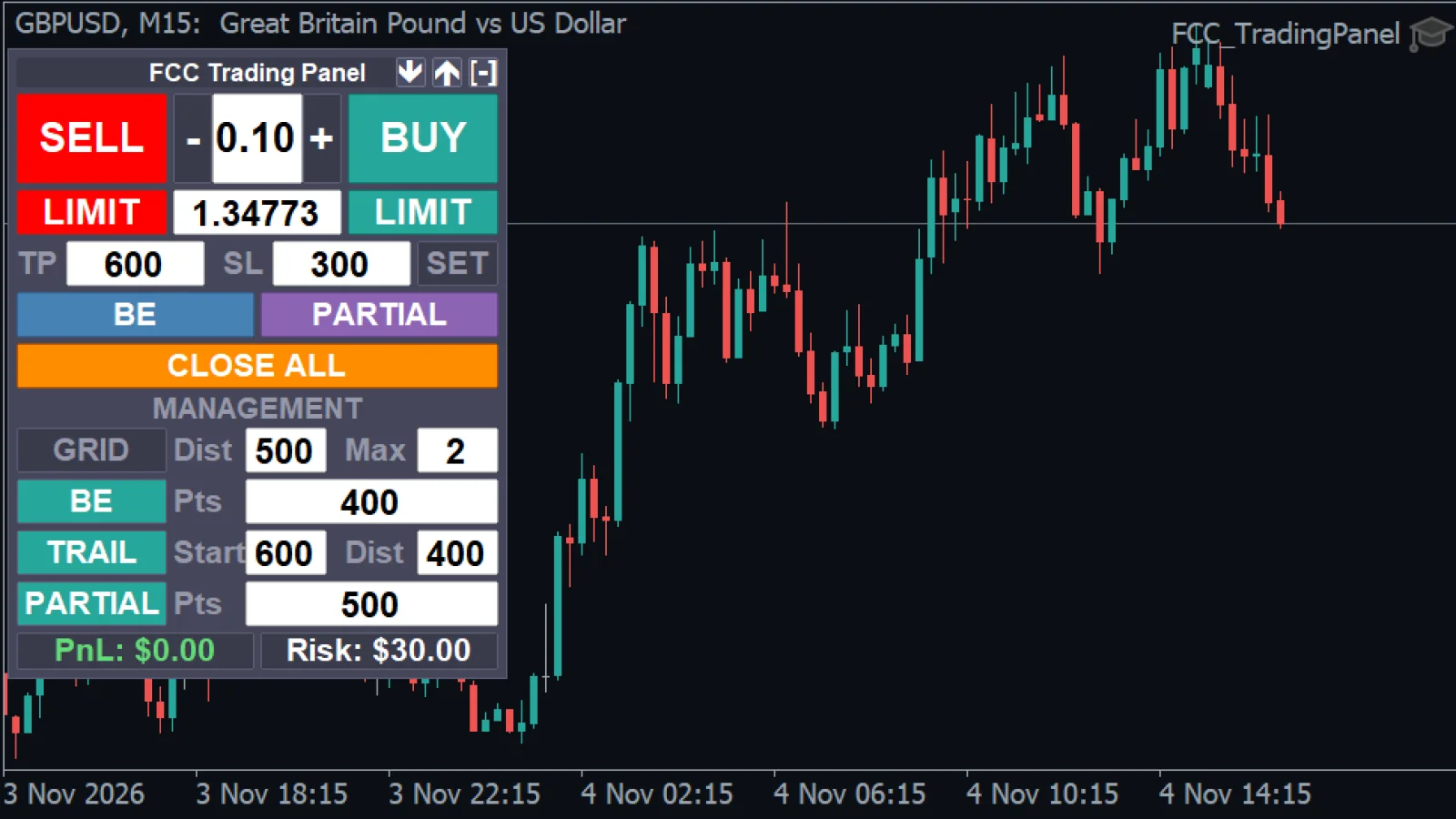
- The MANAGEMENT section, shown only in Full mode.
- Teal = on, grey = off: here BE, TRAIL and PARTIAL are on and GRID is off. Click a name to turn a module on or off.
- Click a value, type a new number and press Enter.
- The PLAN tool works in Full mode too.
| Row | Values | Replaces |
|---|---|---|
| GRID | distance (points), max (orders) | Use Grid?, Min Distance Between Grid Orders, Max Grid Orders |
| BE | points | Use Breakeven?, Breakeven Distance |
| TRAIL | start, distance (points) | Use Trailing Stop?, Trailing Start, Trailing Distance |
| PARTIAL | points | Use Partial Close?, Partial Close Distance |
- Click a name (GRID, BE, TRAIL, PARTIAL) to turn that module on or off. Teal = on.
- Click a value and type a new number, then press Enter. An empty or invalid entry puts the previous value back.
- The other settings of each module (for example the grid lot multiplier or the partial close percentage) still come from the EA inputs.
Changes apply at once, also to trades that are already open: turning BE on moves the stop of an open trade as soon as it is far enough in profit. The Experts tab logs each change, for example QuickPanel MANAGEMENT: BE ON.
Your values are remembered
FCC_EA stores the MANAGEMENT values in the terminal, per Magic Number, so they survive a restart of the EA or the terminal. The first time, the section starts with the values of the EA inputs. At start-up the Experts tab lists what is in use:
MANUAL management (QuickPanel): Grid ON 3x500 | BE ON 1000 | Trail OFF 1000/1000 | Partial OFF 500The stored values apply only in Manual mode. Switch back to an automatic Trading Mode and the EA inputs apply again.
A typical setup
- Set Trading Mode = Manual trading (Panel) and choose your lot, TP and SL in the inputs or in the panel fields.
- In MANAGEMENT turn on BE with 500 points and PARTIAL with 500 points (and set Partial Close % in the inputs, for example 50).
- Open a trade with BUY or SELL. At 500 points in profit half of it closes and the stop of the rest moves to the entry.
Each chart with FCC_EA has its own panel. Use a different Magic Number per chart on the same symbol, so each one keeps its own trades and its own MANAGEMENT values. See Several charts and the Magic Number.
More about the modules: Breakeven and trailing, Grid, Partial close.
All settings for this feature General settings → Grid settings → Breakeven settings → Trailing settings → Close Partial settings →
The one-click panel with the PLAN tool, breakeven, partial close and trailing. Email only, no card, no license key. FCC_EA includes the full panel.
Check the FAQ or write to us. We reply within one business day.