Trading Panel overview
Available in FCC_EA Trading Panel Pro Trading Panel Free
Every FCC_EA plan includes this panel. The standalone FCC Trading Panel Free and Pro (for manual trading without FCC_EA) are described separately: install and use them and Free vs Pro. The buttons work the same there; slots and Hedge Signal Mode exist only in FCC_EA, and Full mode is the panel's Mode input.
The QuickPanel, the Trading Panel on our website, lets you trade by hand from the chart, and FCC_EA then manages your manual trades like its own: stop loss, take profit, breakeven, trailing, grid and hedge mode all apply.
It works in two ways:
- Quick mode: the panel next to the EA's automatic trading. Turn it on and step in by hand whenever you want.
- Full mode: signals off, you trade only from the panel, and its MANAGEMENT section controls grid, breakeven, trailing and partial close. See Full mode.
Turn it on with Display Quick Trade Panel? (OTHER SETTINGS). In Manual trading (Panel) mode it is always shown.
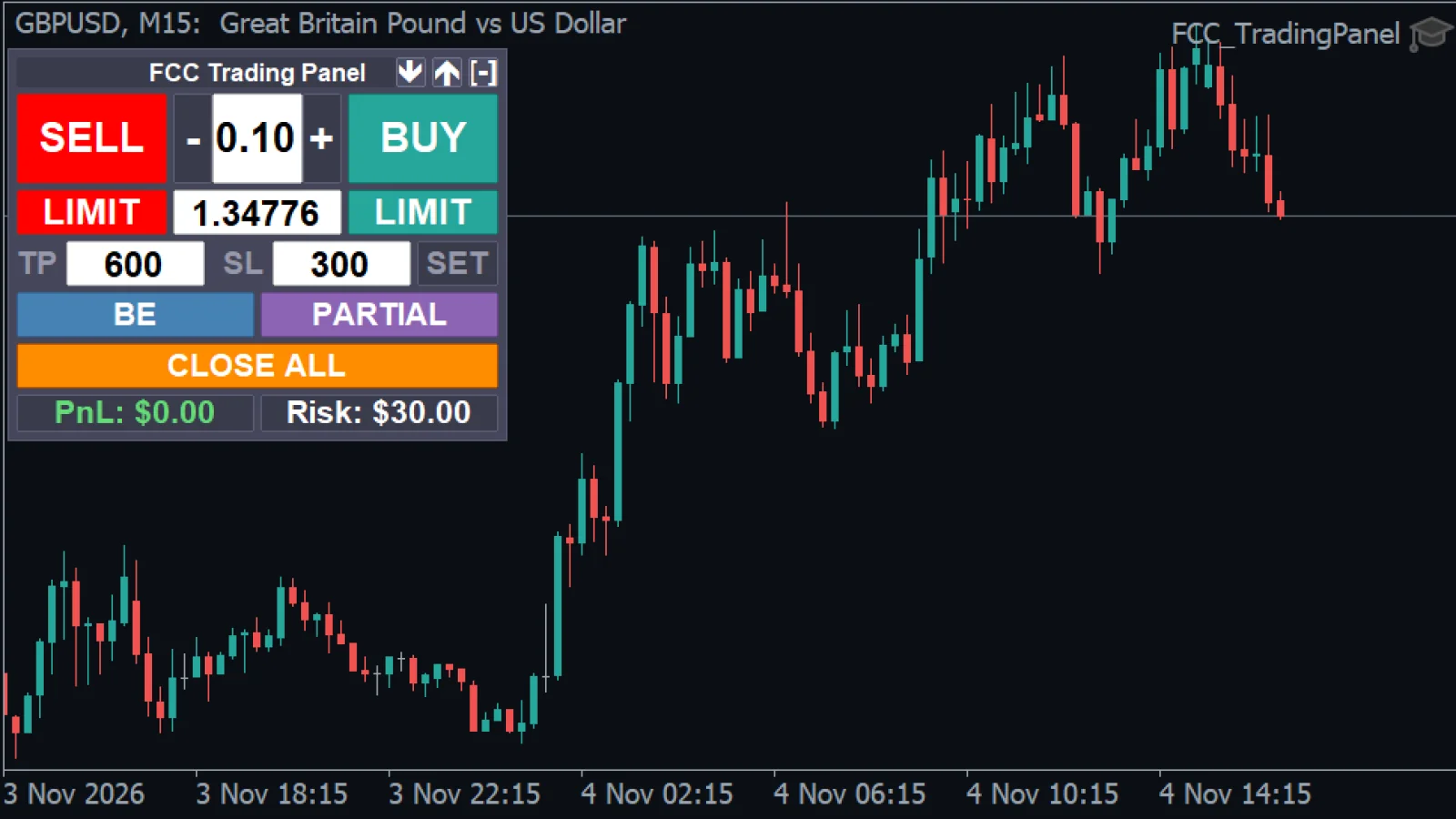
- Title bar: drag to move, ▼ / ▲ for the PLAN tool, [-] to fold the panel.
- SELL, lot with − / +, BUY.
- LIMIT: a pending order at the price in the middle field. FCC_EA picks a limit or a stop order by itself, from where that price is: a BUY below the market is a buy limit, above it a buy stop (SELL the other way round).
- TP and SL in points, SET applies them to open positions.
- BE, PARTIAL, CLOSE ALL.
- Result and risk of the open positions.
Opening trades
- BUY / SELL opens a market order with the lot from the field and the TP and SL from the fields below. If a position in the same direction is already open, the new one is added to it and shares its take profit.
- − / + change the lot by one lot step; you can also type a lot. It is rounded to the broker's lot step.
- LIMIT places a pending order at the price in the middle field. FCC_EA picks the type itself: below the market a BUY is a buy limit and above it a buy stop (and the mirror for SELL).
- With Hedge Mode on, the SL field sets the hedge zone of the new trade instead of a stop.
The values of the fields are remembered when you change the timeframe or restart MetaTrader.
Changing open trades
- SET applies the TP and SL fields to the open positions: the TP from their average entry, the SL as one stop price for the whole group, also from the average entry. Leave a field empty to keep the current value. With the SL timeout on, the virtual stop line moves; in hedge mode before the cycle starts, the hedge zone moves. An active hedge cycle is not changed.
- BE moves the stop of every open position to the average entry price, at once.
- PARTIAL closes the share set in Partial Close % (CLOSE PARTIAL SETTINGS) of every open position.
- CLOSE ALL closes the positions and pending orders.
Slots
With Hedge Signal Mode on, a selector Slot A / Auto / Slot B appears. The buttons act on the chosen slot; Auto sends BUY to slot A and SELL to slot B, and BE, PARTIAL and CLOSE ALL act on both. The close button then reads CLOSE SLOT when one slot is selected. Without Hedge Signal Mode everything goes to slot A.
The footer
- PnL: floating result of the open positions of the selected slot(s).
- Risk: what you would lose at the stop. In red for open positions (at their real stop, or at the virtual stop line), in white as a preview of the next trade from the lot and SL fields when nothing is open.
When the buttons are grey
BUY, SELL and LIMIT turn grey when FCC_EA may not open new trades because of the license; hover over them to see why. See License status messages. Trades opened from the Trading Panel do not count toward Max Trades per Day.
Manual trading mode
With Trading Mode = Manual trading (Panel), signals are off and the panel gets a MANAGEMENT section: GRID (distance, max), BE (points), TRAIL (start, distance) and PARTIAL (points). Click a name to turn that module on or off (teal = on); the values replace the matching settings while you trade manually. The info panel header shows -- MANUAL --. More in Full mode.
See also: PLAN tool.
Trading by hand only, without FCC_EA? The same panel is available on its own: FCC Trading Panel Free and Pro.
All settings for this feature Other settings → General settings → Hedge Signal Mode settings →
The one-click panel with the PLAN tool, breakeven, partial close and trailing. Email only, no card, no license key. FCC_EA includes the full panel.
Check the FAQ or write to us. We reply within one business day.