Activate your FCC_EA license
FCC_EA activates your license by itself when it starts. You only enter the key once per chart.
Enter the key
- Copy your license key from the customer portal.
- Attach FCC_EA to a chart (or open its settings with F7 on a chart where it already runs).
- On the Inputs tab, in the first section
=== LICENSE ===, paste the key into License Key. - Click OK.
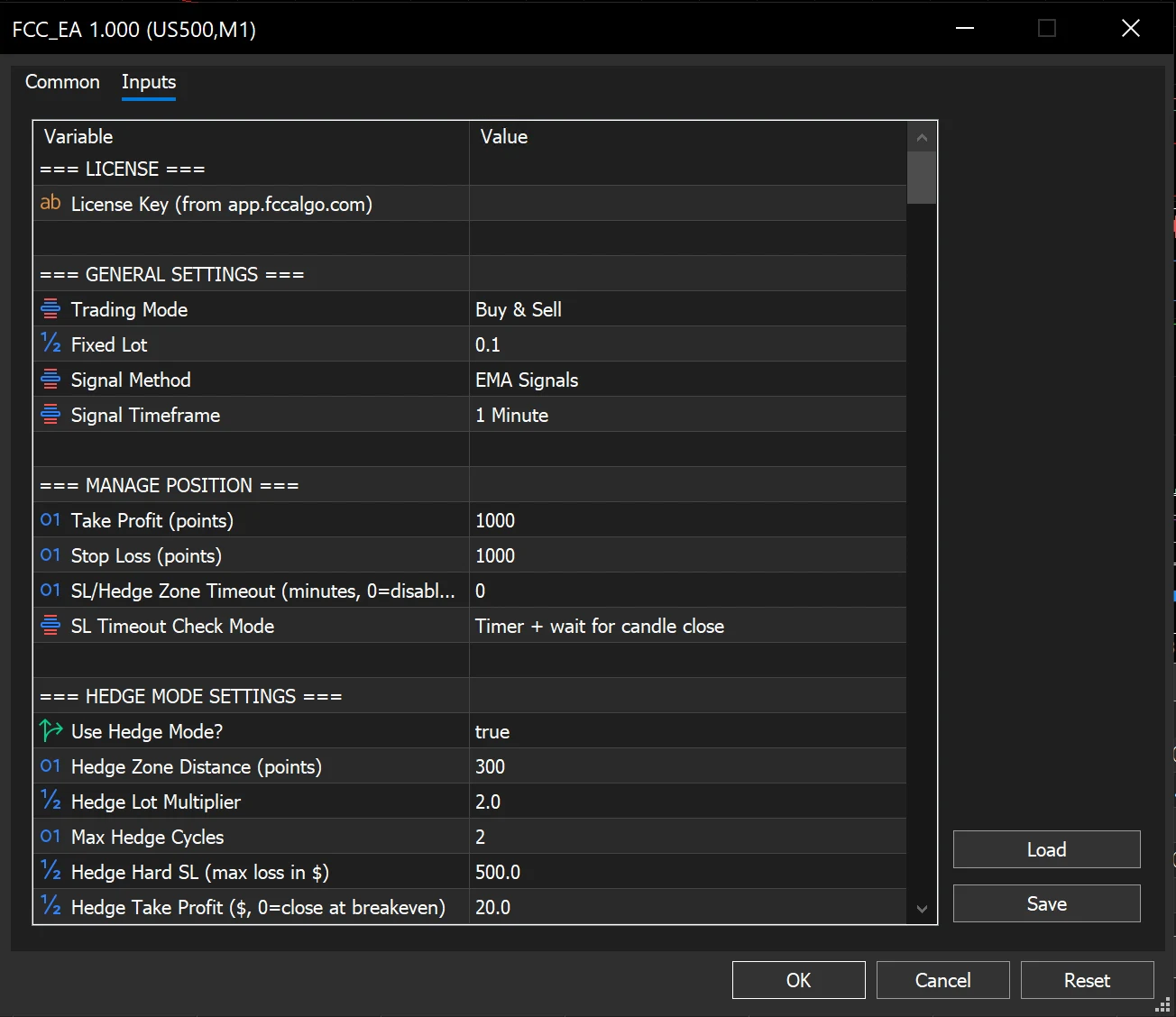
=== LICENSE ===at the top of the Inputs tab: paste your key into License Key (left empty in this picture).
About a second after it starts, FCC_EA contacts the license server. The Experts tab of the Toolbox (Ctrl + T) shows the result:
License: active until 2027-10-20 (1/5 accounts)A one-time (no expiry date) license shows License: active (lifetime, 1/5 accounts).
Click Save on the Inputs tab to store your settings, including the key, in a set file. When you attach FCC_EA to the next chart, click Load and pick that file.
If the key is empty and FCC_EA has no positions or orders of its own on the symbol, it starts, but the chart shows only -- LICENSE: ENTER YOUR KEY -- and Get it at fccalgo.com. Paste the key and FCC_EA comes to life. If it does have positions there, it manages them, but opens nothing new.
Up to 5 accounts at the same time
One license works on up to 5 trading accounts at the same time, demo or live. An account is a login on a broker server. Any number of charts and symbols on the same account count as one account.
- A new account takes a free place the first time FCC_EA starts on it.
- An account where FCC_EA has not run for a while frees its place by itself.
- You can free a place at once in the customer portal with Disconnect. The account then stays disconnected: restarting MetaTrader, opening the EA settings with F7 or recompiling does not reconnect it. Only attaching FCC_EA to a chart again does. An FCC_EA already running on that account finds out at its next license check.
When all 5 places are taken, FCC_EA on a sixth account opens no new trades and shows:
License: ACCOUNT LIMIT. Disconnect an account at app.fccalgo.com, then attach the EA again.Moving to another account
Log in to the new account and FCC_EA moves the license there by itself; the old account's place is freed straight away. If you disconnect an account in the portal, attach FCC_EA to a chart again to use it once more; a restart or a recompile does not reconnect it. Step by step, also for a new computer or broker: Move to another account.
When the server cannot be reached
A short interruption of your internet, the VPS network or our server does not stop trading. The Experts tab then shows:
License: connection problem - working offline until <date>Trading carries on as normal and the next successful check clears the message. Open positions are always managed.
What FCC_EA does without a valid license
Without a valid license FCC_EA never closes or abandons your positions. It keeps managing everything it has opened: stop loss, take profit, breakeven, trailing, hedge cycles and closing at the set time.
What it stops is opening new trades:
- signals are ignored,
- the Trading Panel BUY, SELL and LIMIT buttons turn grey,
- grid and pyramid orders are not added.
The info panel header turns red, for example -- LICENSE: EXPIRED --, with the lines Open trades are still managed, no new trades and what to do. With no trades of its own on the symbol, or after the last one closes, the chart shows only the red header and what to do: no indicators, levels, PLAN tool or Trading Panel. Once the license is valid again everything comes back by itself, without reloading FCC_EA.
FCC_EA shows the reason once in an alert and in your Telegram / push alerts if you use them. Every status and what to do about it is in License status messages.
Updates
When a newer FCC_EA version is out, the info panel shows Update available: x.y.z in orange and the Experts tab says where to download it. Your license carries over. Update only when FCC_EA has no open trades: save your settings as set files, replace FCC_EA.ex5 in the MQL5\Experts folder and restart MetaTrader. Your charts keep FCC_EA and their settings. Step by step: Update FCC_EA to a new version.
The Strategy Tester
FCC_EA runs in the MetaTrader 5 Strategy Tester too:
- With a license: run FCC_EA once on a live chart on the account the terminal is logged in to. After that the tester has no limit on that account.
- Without a license: the tester opens trades over the whole history except the last 7 days before today. The last 7 days of a test still run, but no new trades are opened there. The tester journal shows
License: Strategy Tester without a license - trading up to <date> (the last 7 days need a license). Don't have FCC_EA yet? Start a free backtest: no license key and no payment details.
How to run a good test: Test your settings in the Strategy Tester.
The key is sent only to https://api.fccalgo.com, together with your account number and broker server, so the license can count your accounts. See the Privacy Policy.
All settings for this feature License settings →
Backtest this setup free in the Strategy Tester, and adjust it whenever the market changes; every feature is in every plan. Backtest results depend on your broker's data and don't guarantee future results.
Check the FAQ or write to us. We reply within one business day.