Install FCC_EA in MetaTrader 5
This guide takes you from the download to FCC_EA running on your first chart. It takes about five minutes.
FCC_EA runs only on a hedging account. On a netting or exchange account it does not start: it shows an alert saying it needs a hedging account and leaves the chart. Most forex and CFD brokers offer hedging accounts, sometimes as a separate account type, so check with your broker before you start.
Before you start
- MetaTrader 5 desktop terminal. FCC_EA does not run in MetaTrader 4 or in the MetaTrader mobile apps.
- A hedging trading account, demo or live.
- Your license key and access to the customer portal.
Download FCC_EA
Sign in to the customer portal and download the latest FCC_EA. The download is a zip, FCC_EA_x.y.z.zip (x.y.z is the version); unzip it to get FCC_EA.ex5. Your license key is in the portal too; you need it in step 5.
For security, each download link works only for a few minutes. If a link has expired, open the portal again and click download once more.
Copy it to MetaTrader 5
- In MetaTrader 5 open File › Open Data Folder.
- In the folder that opens, go to MQL5 › Experts and paste
FCC_EA.ex5there. - Back in MetaTrader, open the Navigator (Ctrl + N), right-click Expert Advisors and choose Refresh.
FCC_EA now appears in the list under Expert Advisors.
Always copy the file into the folder that File › Open Data Folder opens. If you have several MetaTrader terminals installed, each one has its own data folder.
Allow web requests
FCC_EA checks your license online, and it can send Telegram alerts. MetaTrader blocks these requests until you allow the addresses.
- Open Tools › Options and go to the Expert Advisors tab.
- Tick Allow WebRequest for listed URL.
- Add both addresses to the list:
https://api.fccalgo.com
https://api.telegram.org- Click OK.
https://api.fccalgo.com is the license server. Without it FCC_EA cannot check your license and does not open new trades. https://api.telegram.org is needed only if you use Telegram alerts.
Attach it to a chart
- Open the chart of the symbol you want to trade.
- Drag FCC_EA from the Navigator onto the chart, or double-click it.
- In the Common tab of the window that opens, make sure Allow Algo Trading is ticked.
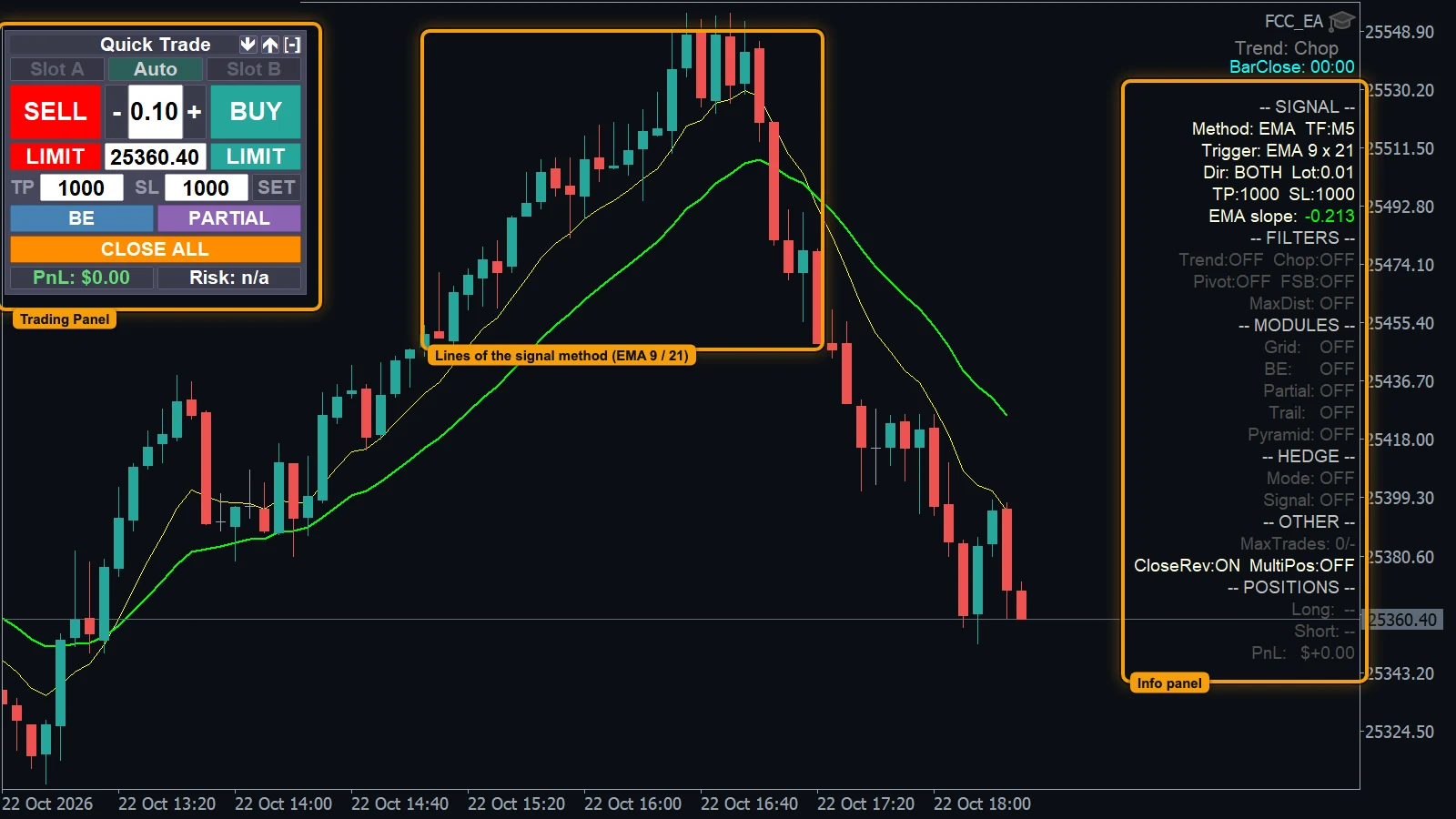
- Info panel: what FCC_EA is doing. Its header turns red if Algo Trading is off or the license blocks new trades.
- Trading Panel: buttons for manual orders. It is off by default; turn it on with Display Quick Trade Panel? in OTHER SETTINGS.
- Lines of the active signal method, here the two EMAs of EMA Signals. The name FCC_EA in the top-right corner shows that the EA is running.
Enter your license key
Still in the same window, open the Inputs tab. The first section is === LICENSE ===. Paste your key into License Key and click OK.
FCC_EA activates the license right after it starts. With an empty key the chart shows only -- LICENSE: ENTER YOUR KEY -- until you enter the key. One license works on up to 5 MetaTrader 5 accounts at the same time.
Turn on Algo Trading
Click the Algo Trading button on the MetaTrader toolbar so that it is switched on. While Algo Trading is off, FCC_EA does not trade and the header of its info panel shows -- ALGO TRADING OFF -- in red.
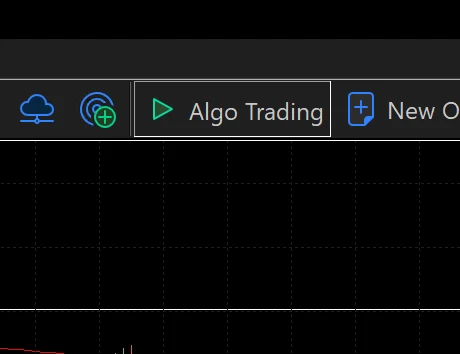
- The Algo Trading button, switched on.
Check that it is running
- The FCC_EA name shows in the top-right corner of the chart.
- The Experts tab of the Toolbox (Ctrl + T) shows the FCC_EA start-up messages.
- No red header on the info panel. If it shows
-- LICENSE: ... --, check the key and the address list from step 3.
Run FCC_EA on a demo account first, with the settings you plan to use live, until you know how it behaves. Trading leveraged products is risky; see the Risk Disclaimer.
If something does not work
- FCC_EA is not in the Navigator. Check that the file is in MQL5 › Experts inside the Data Folder, then choose Refresh again or restart MetaTrader.
- An alert about a hedging account. The account is a netting or exchange account. Open a hedging account with your broker and attach FCC_EA there.
- A license connection problem. Check that
https://api.fccalgo.comis in the list from step 3 and that the terminal is online. - Still stuck? Contact support and tell us what the Experts tab shows.
All settings for this feature License settings →
Backtest this setup free in the Strategy Tester, and adjust it whenever the market changes; every feature is in every plan. Backtest results depend on your broker's data and don't guarantee future results.
Check the FAQ or write to us. We reply within one business day.