Your first chart with FCC_EA
With its default settings FCC_EA trades a simple, well-known setup, so you can watch it work before you change anything. This guide walks you through a first run on a demo account.
What FCC_EA does with the defaults
Out of the box FCC_EA uses the EMA Signals method on the M1 timeframe:
- the fast EMA crosses above the slow EMA → it opens a BUY,
- the fast EMA crosses below the slow EMA → it opens a SELL,
- an opposite signal closes the open position and opens the new one,
- every position gets a stop loss and a take profit of 1000 points,
- all extras are off: no grid, no pyramiding, no breakeven, no trailing, no hedge mode.
That is a lot of trades on M1 and it is meant as a demo, not a strategy. Use it to learn how FCC_EA behaves, then pick a method and settings that suit you. To build your own simple set step by step, see Quick setup.
Check these settings first
Open the EA settings (F7 on the chart) and look at the Inputs tab.
| Setting | Default | What to check |
|---|---|---|
| Trading Mode | Buy & Sell | Or Buy only / Sell only. Manual trading (Panel) turns off signals and leaves you the Trading Panel. Trading OFF opens nothing. |
| Fixed Lot | 0.01 | Size of each new position. FCC_EA rounds it to your broker's lot step. See Lot size and risk. |
| Signal Method | EMA Signals | The entry method. See How signals work. |
| Signal Timeframe | M1 | Signals are read from this timeframe, whatever timeframe the chart shows. |
| Take Profit / Stop Loss | 1000 / 1000 | In points, see below. |
All other settings are listed, section by section, in the Settings reference.
Points, not pips
Every distance in FCC_EA (stop loss, take profit, breakeven, grid, hedge zone and so on) is in points. A point is the smallest price step your broker quotes for the symbol. So 1000 points is a different move on different symbols:
| Symbol | Price | One point | 1000 points |
|---|---|---|---|
| EURUSD | 1.08450 | 0.00001 | 0.01000 (100 pips) |
| USDJPY | 151.250 | 0.001 | 1.000 |
| Gold (XAUUSD) | 2650.25 | 0.01 | $10 |
| An index quoted as 5850.25 | 5850.25 | 0.01 | 10 index points |
Brokers differ: one quotes an index as 5850.25 (point 0.01), another as 5850.2 (point 0.1), and the same number of points then means a ten times bigger move. When you copy settings from someone else, check that you both use the same price format.
Hover over the price scale: the number of decimals is the point. Two decimals = point 0.01, five decimals = point 0.00001.
Read the info panel
The info panel in the top-left corner sums up what FCC_EA is set to do. Every line is explained in The info panel.
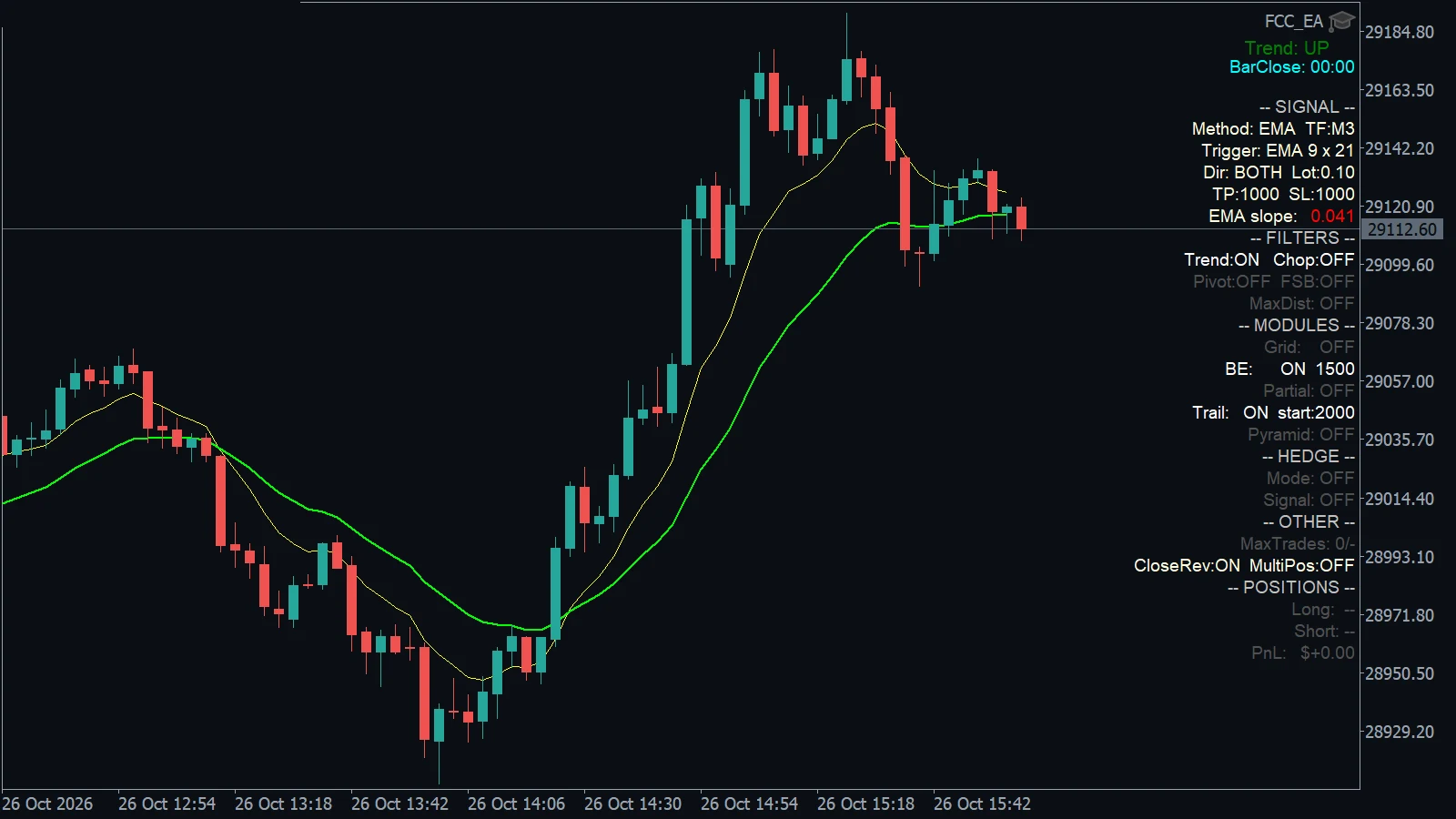
- Header:
-- SIGNAL --while FCC_EA may open trades. Shows-- SIGNAL OFF … --in red outside your trading hours and-- BREAK 1: … --in orange during a break. A red-- ALGO TRADING OFF --or-- LICENSE: … --means FCC_EA cannot open trades now. - Method, signal timeframe and the trigger the method uses.
- Trade direction, lot, TP and SL.
- Filters, management modules and hedge mode: what is on.
- Open positions of slot A and slot B and their total result.
Watch the Experts log
Open the Toolbox (Ctrl + T) and switch to the Experts tab. FCC_EA writes what it does there. On a signal you see two lines like these:
BUY signal: EMA Signals (candle 2026.10.23 10:15)
SlotA[magic=1234]: BUY 0.01 @ 1.08433 (sl=1.07433 tp=1.09433 cmt=Main Buy)If a signal is blocked, for example by a filter, outside trading hours or by the daily trade limit, the log says why. See No trades are opening and Reading the Experts log.
Several charts and the Magic Number
You can run FCC_EA on several charts at once, on different symbols. Each chart manages only its own positions: FCC_EA marks them with the Magic Number and the symbol.
If you run FCC_EA twice on the same symbol (for example with two different methods), give each chart a different Magic Number. With the same number both copies would treat each other's positions as their own.
Before you go live
- Test your settings in the Strategy Tester, then run them on a demo account until you know how they behave in calm and in fast markets.
- Use a lot size and stop loss you can afford to lose on every trade.
- Make sure the terminal runs all the time, ideally on a VPS; see Requirements.
Trading leveraged products is risky; see the Risk Disclaimer.
All settings for this feature General settings → Manage Position settings → Other settings →
Backtest this setup free in the Strategy Tester, and adjust it whenever the market changes; every feature is in every plan. Backtest results depend on your broker's data and don't guarantee future results.
Check the FAQ or write to us. We reply within one business day.